
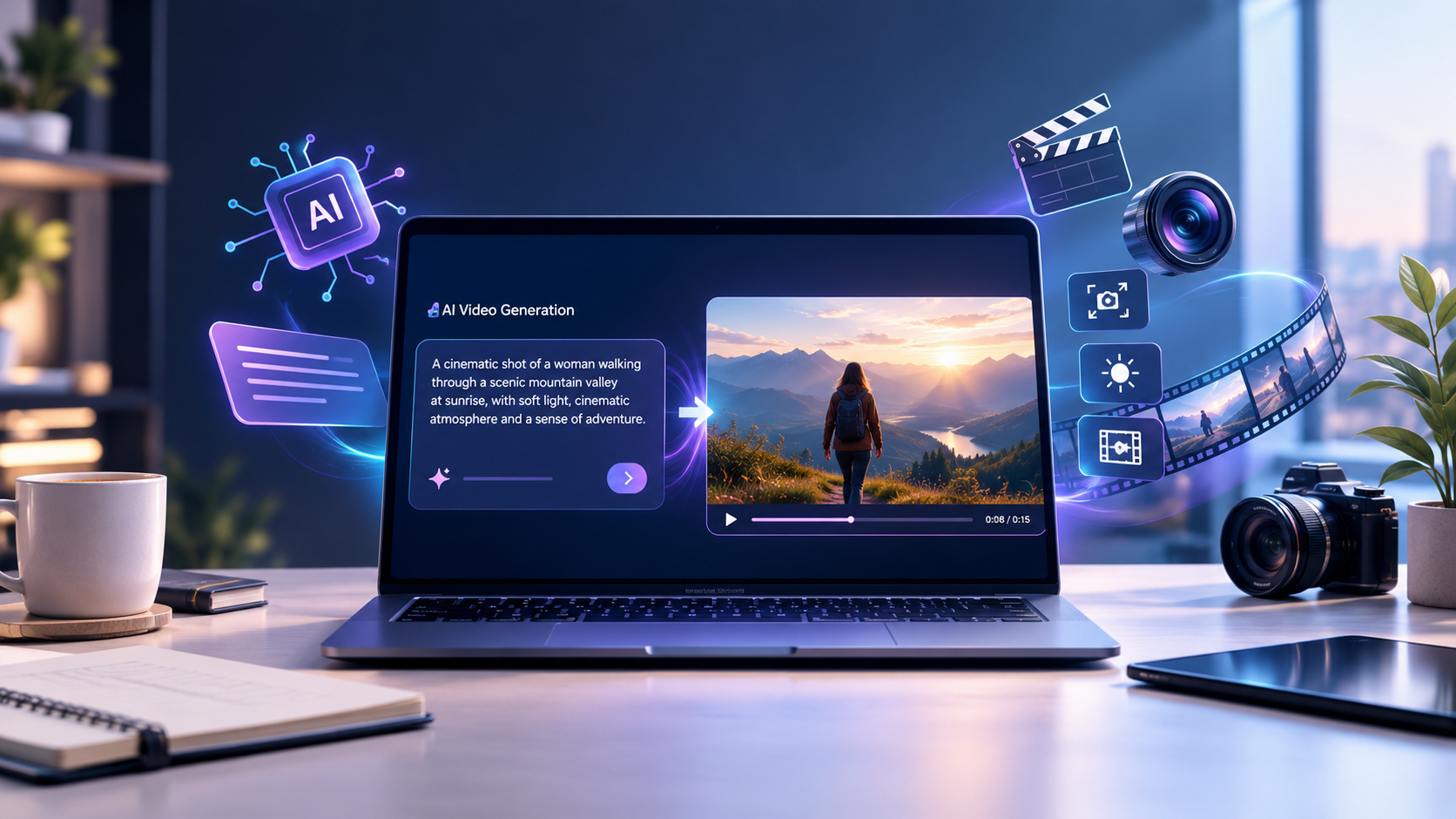
Video production once required cameras, actors, lighting, and hours of editing. AI is changing that process. Flow AI, Google’s AI filmmaking platform, lets users create video scenes by describing what they want to see. Instead of filming every scene, you can use AI-generated visuals to turn an idea into a video clip.
This can be useful for content creators, small business owners, YouTubers, designers, freelancers, and digital marketers. Flow can help with tasks such as creating social media videos, product visuals, promotional clips, concept videos, and cinematic scenes.
In this guide, you’ll learn what Flow AI is, how it works, its main features, and how text-to-video and image-to-video generation work. You’ll also learn about pricing considerations and practical tips for creating better results.
What Is Flow AI?
Flow AI is Google’s AI filmmaking and video creation platform. It brings together Google’s generative AI models and filmmaking tools in one workspace. Users can create video clips from text prompts. They can also use images as references and develop multiple clips for one project.
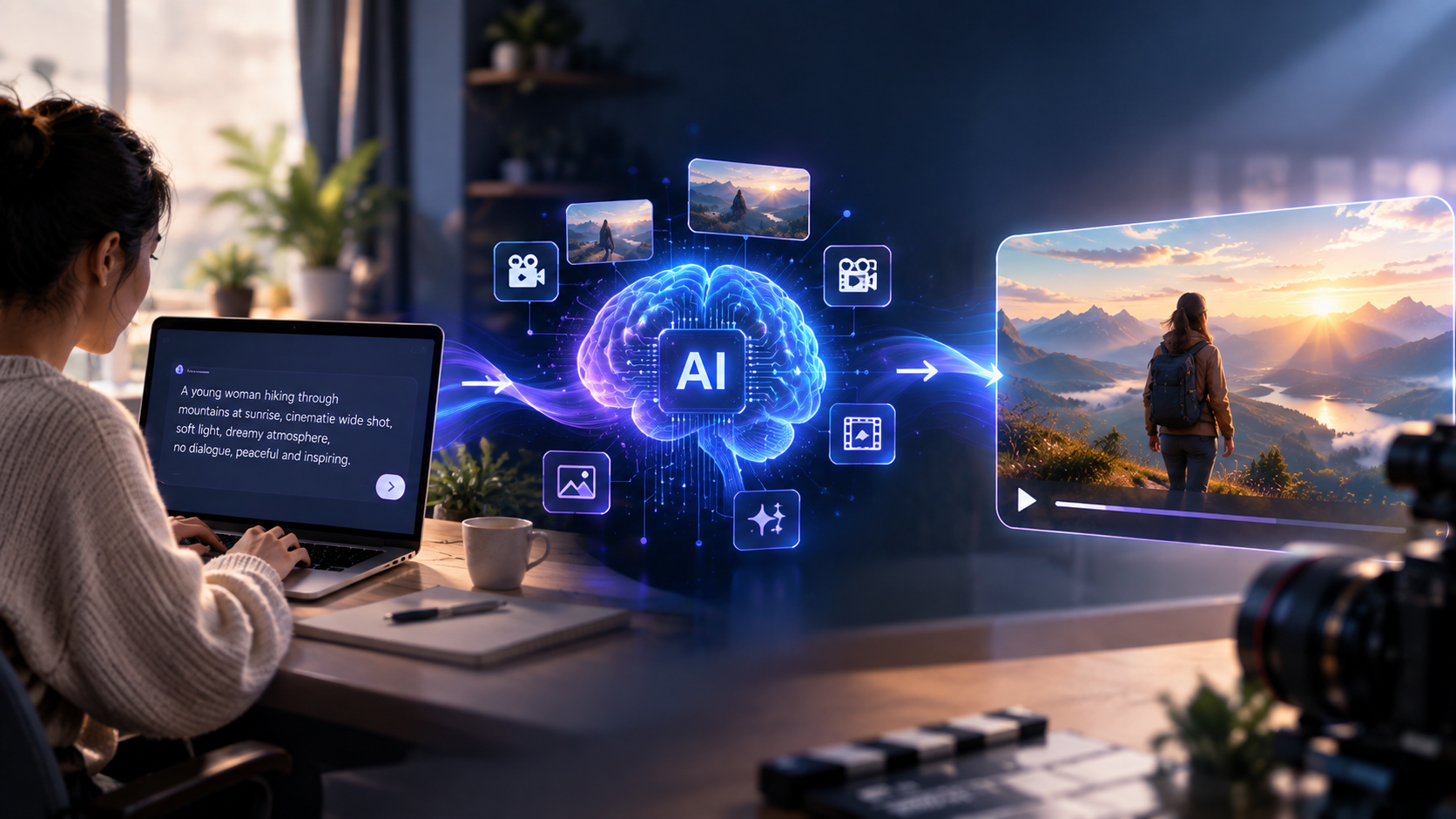
In simple terms, you describe what you want to create. Flow then generates content based on your instructions. You can describe a scene, character, object, camera movement, or visual style. The AI uses these instructions to create visual content.
Flow was introduced by Google Labs as an AI filmmaking tool. The platform has continued to evolve with new features and models. It now supports different ways of creating and developing visual content.
How Is Flow AI Different From Traditional Video Editing?
Traditional video editing usually starts with recorded footage. You then cut, arrange, and modify those clips on a timeline.
Flow takes a different approach. You can generate visual content from text prompts and reference images. You can then arrange the clips into a larger sequence.
This makes Flow useful for people who have a video idea but do not have access to a camera, actors, filming equipment, or a traditional production team.
What Can You Create With Flow AI?
Depending on the features and models currently available, Flow can be used for different types of creative projects, including:
- Short cinematic scenes
- Social media video clips
- Product and promotional visuals
- Concept videos
- Storytelling sequences
- Advertising concepts
- Explainer visuals
- Creative experiments
- AI-generated images that can be used as visual references
Flow is not a replacement for every part of professional film production. However, it can make visual experimentation more accessible. It can also help creators and businesses produce short-form content.
How Does Flow AI Work?
Using Flow AI follows a simple process. You start with an idea, create video clips, improve them, and then put the clips together.
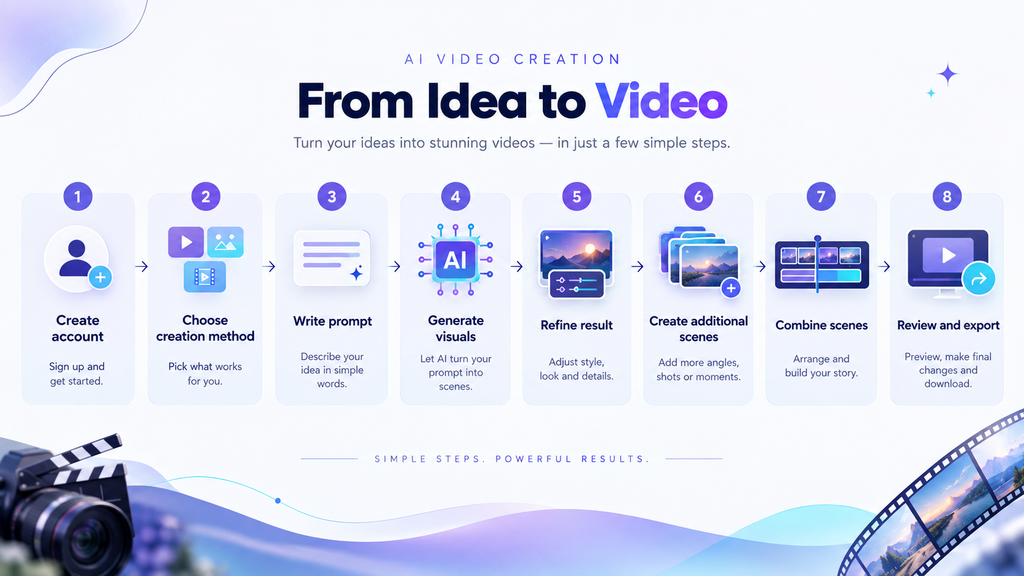
1. Create or access an account.
Go to Flow and sign in with your Google account. The features and access available to you depend on your current Google plan.
2. Choose how you want to create.
Flow gives you different ways to make video content. You can create a video from a text prompt. You can also use images as the starting or ending point of a video. Another option lets you use images to guide the look of a person, object, or scene.
3. Write a prompt.
Tell Flow what you want to see. You can describe the person or object, what is happening, where the scene takes place, and how you want the camera to move. You can also describe the mood, lighting, and visual style.
4. Generate a video clip.
Flow uses your prompt to create a short video clip. You can review the result and decide whether it matches your idea.
5. Improve the result.
If the result is not what you expected, you can change your prompt or use a different image. You can also use Flow’s available tools to change parts of the scene or camera movement.
6. Create more scenes.
Once you have a clip you like, you can add it to your project. Flow’s storyboard tools can help you arrange and manage different clips. This makes it easier to build a longer sequence from several short scenes.
7. Put the scenes together.
You can arrange your clips in the order you want. You can also use available tools to continue a shot or move from one scene to another.
8. Review your video.
Watch the completed sequence and check the clips carefully. If something needs to change, go back and edit the relevant clip or prompt. When you’re happy with the result, you can use the available export options to save or share your video.
Main Features of Flow AI
Flow AI includes several tools that offer more than basic text-to-video creation. Here are the main features beginners should know about.
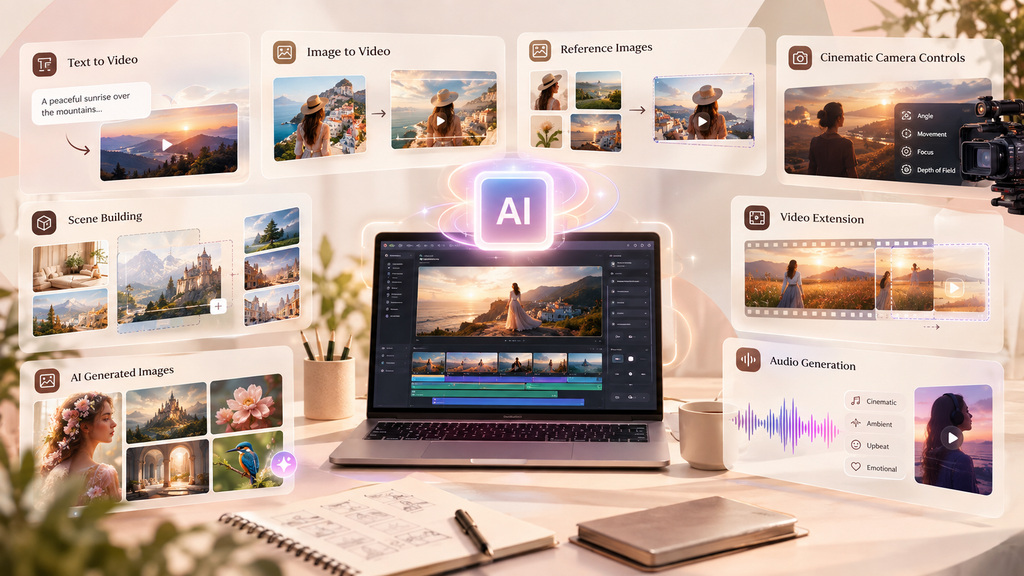
Text to Video
This is one of the main ways to create videos in Flow. You type a description of the scene, and Flow creates a video clip based on your prompt. It is a simple way to turn an idea into a visual.
Frames to Video
With Frames to Video, you can use an image to help create a video. You can provide a starting image and, when supported, an ending image. Flow then creates a video that connects the images.
This gives you more control over how the video starts and ends. It can also help you keep the overall look of your video closer to your original idea.
Ingredients to Video
Ingredients to Video lets you use images as guides for your video. For example, you can provide an image of a person, product, object, or visual style.
This can help you create similar characters or objects across different clips. It can be useful when you are making a story with several scenes or creating content for a brand.
The quality of the result can depend on the images you provide. Clear and consistent images can make it easier to get the look you want.
Scenebuilder
Scenebuilder helps you organize multiple video clips into a larger scene. You can arrange clips and decide how they should appear in your project.
For example, you could create five short clips for a product advertisement. You can then arrange those clips to create one longer sequence.
Camera Controls
Camera Controls can help you change the way the camera moves in a scene. You can create movements such as pans, tracking shots, or zooms.
This can be useful when you want your AI-generated video to have a more planned camera movement. You can describe the type of shot you want instead of using a physical camera.
Extend and Jump To
Extend can help you continue a video shot beyond its original length. Jump To can help you move from one part of a story to another.
These tools can be useful when you want to create longer or more connected scenes from shorter video clips.
Nano Banana Image Generation
Flow can also include Google’s image generation tools, depending on the features available in your account. These tools can help you create or edit images that you can then use in your video projects.
For example, you could create an image of a product, character, or background before using it as part of a video.
Because Google’s AI tools and features can change over time, check the current Flow documentation for the latest information about available image models.
Native Audio
Some Flow video models can create audio along with video. Depending on the model and current availability, this may include sounds, background audio, or speech.
You can describe the sound you want in your prompt. For example, you might ask for background sounds or dialogue between characters.
Audio features can change as Google updates its video models. Check the current Flow information before relying on a specific audio feature.
Flow TV
Flow TV is a showcase where users can explore AI-generated video creations. It can also help beginners understand how different prompts can produce different results.
Looking at examples can give you ideas for your own prompts. You can study the scenes, visual styles, and descriptions used by other creators.
Flow AI Text-to-Video
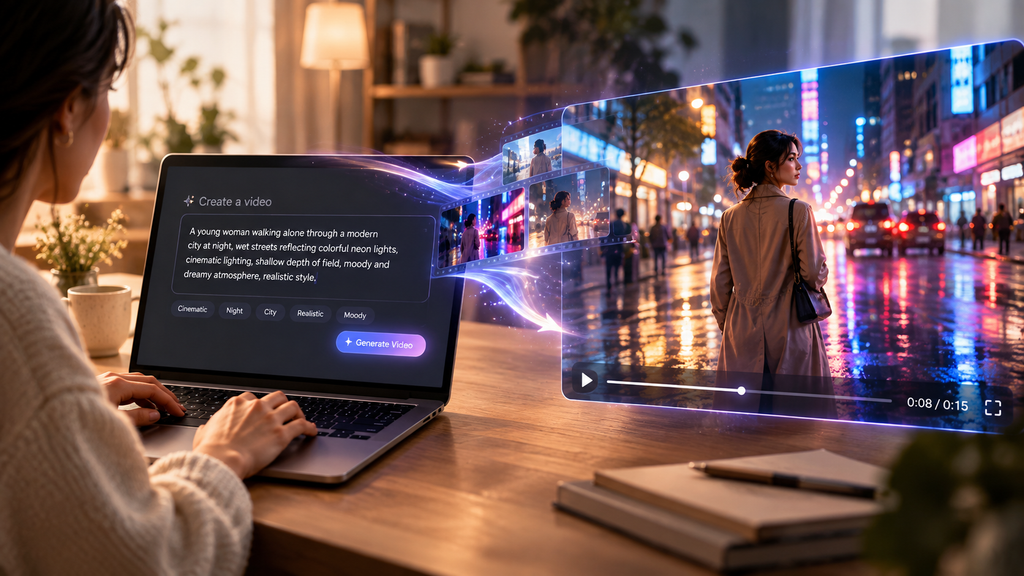
Text-to-video is exactly what it sounds like: you write a description of a scene, and Flow generates a matching video clip without you supplying any images. It’s the most accessible entry point into Flow AI because it requires no assets — just words.
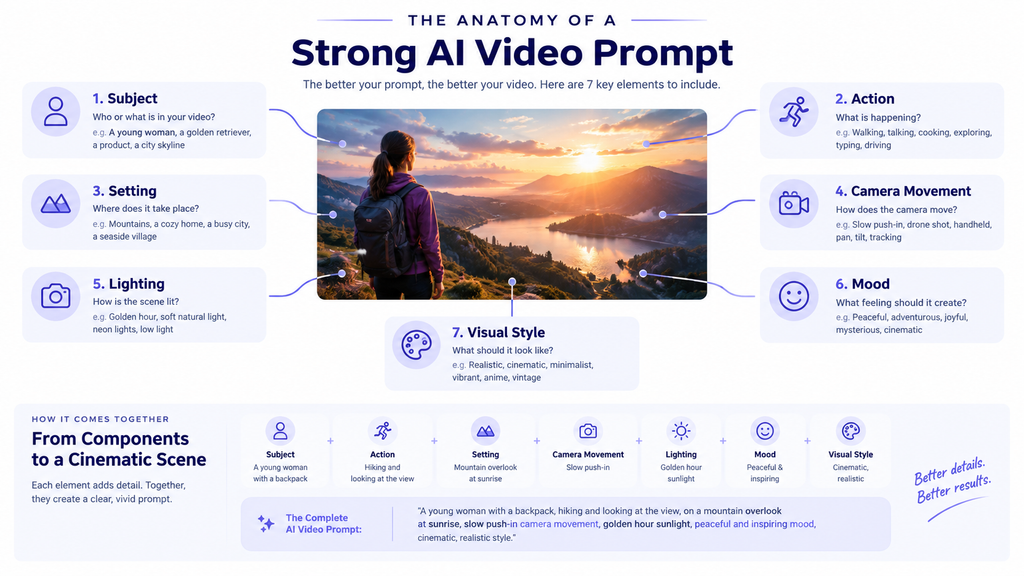
A strong Flow AI prompt for text-to-video generally includes:
- Subject — who or what is in the shot
- Action — what’s happening
- Setting — where the scene takes place
- Camera style — static, panning, tracking, aerial, close-up, etc.
- Lighting and mood — golden hour, moody, bright and clean, cinematic
- Style — realistic, animated, cinematic film look, documentary style
Beginner-friendly example prompt:
“A young woman in a rain jacket walks through a quiet city street at night, neon signs reflected in the wet pavement, camera slowly tracking alongside her at eye level, cinematic lighting, moody blue and pink color palette.”
Notice this covers subject, action, setting, camera movement, and mood in one compact description — that’s the formula.
Tips for better text-to-video results:
- Be specific about camera movement rather than leaving it to chance — vague prompts produce generic results.
- Describe one clear action per clip rather than a sequence of multiple events; Flow AI clips are short, so overloaded prompts tend to produce muddled motion.
- Use Gemini’s built-in prompt expanders to refine a rough idea into a more detailed, cinematic prompt.
- Generate multiple variations of the same prompt and pick the best one — Flow typically gives you more than one output per generation.
- If a result looks close but not quite right, tweak one element (lighting, angle, or action) rather than rewriting the whole prompt…AI Prompt Guide for Small Business Owners
Flow AI Image-to-Video
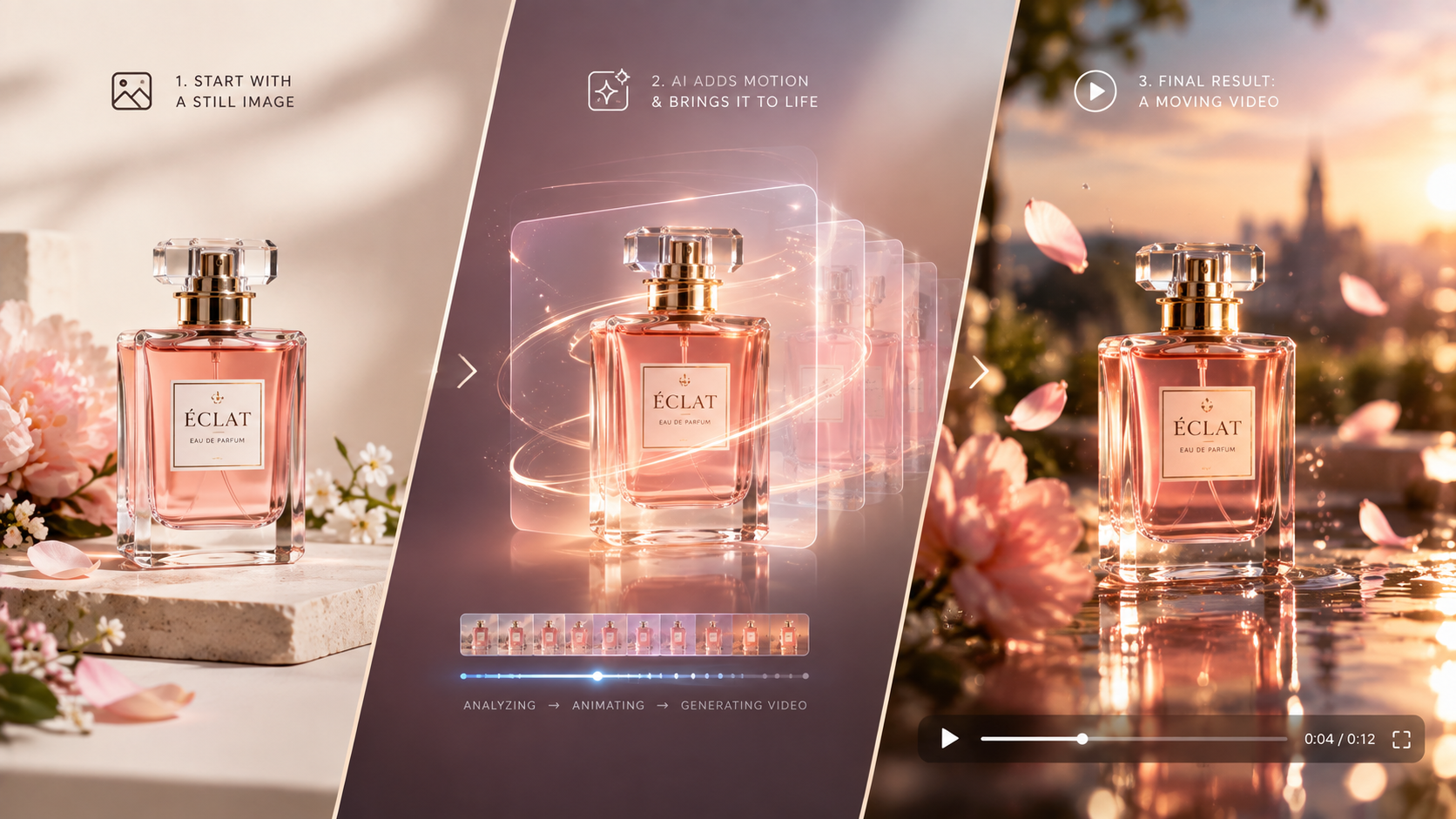
Image-to-video (Flow’s “Frames to Video” tool) takes a static image and turns it into motion. You select an image to use as the starting frame — either generated in Flow or uploaded — and optionally add a second image as the ending frame. Flow then generates the movement that connects them, guided by your prompt….How to Build Your Brand with Canva & AI
This is a different creative approach from text-to-video: instead of describing an entire scene from imagination, you’re starting with a specific visual you already have — a product photo, a portrait, a piece of concept art, or a Nano Banana–generated image — and asking the AI to bring it to life.
How it works, step by step:
- Choose Frames to Video from the generation menu.
- Upload or generate your starting image.
- Optionally add an ending frame for a defined transition.
- Write a prompt describing the motion you want (e.g., “gentle wind moves her hair, camera slowly zooms in”).
- Apply Camera Controls if you want a specific cinematic movement.
- Generate, review the clip, and add it to Scenebuilder if you want to keep it.
Practical example: A small business owner has a still product photo of a candle. Using image-to-video, they upload the photo, describe a slow zoom with soft steam rising and warm light flickering, and get a short, scroll-stopping video clip for social media — without a photoshoot or videographer.
Tips for image-to-video:
- Start with a clean, well-composed, high-resolution image — the AI is animating what’s already there, so a blurry or cluttered source image produces a worse result.
- Keep the described motion physically plausible relative to the image (small, natural movements tend to look more convincing than dramatic action).
- Use Ingredients to Video instead if you need the same character or object to reappear consistently across several separate clips.
Flow AI Pricing
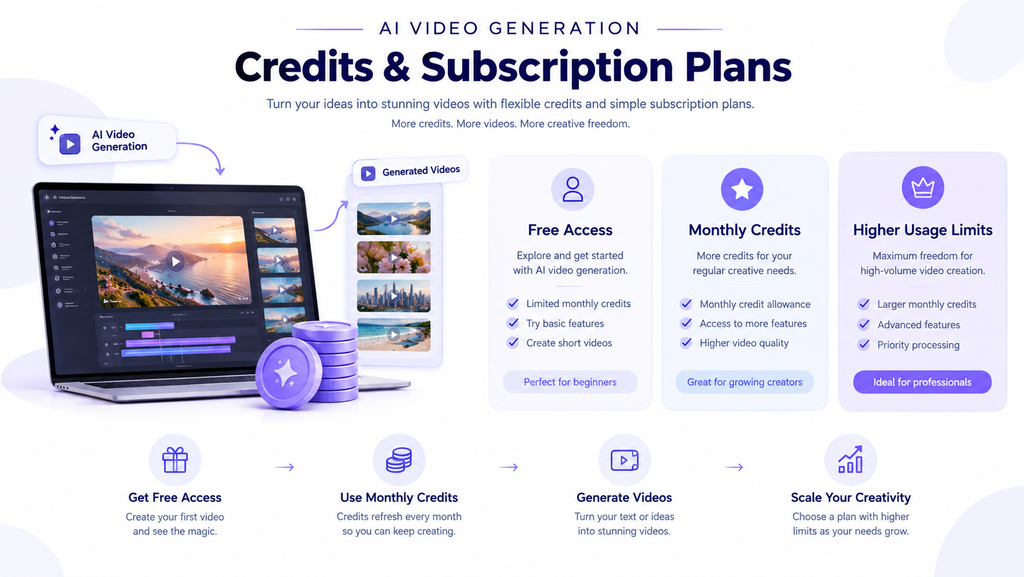
Flow AI doesn’t have its own separate subscription — it’s bundled into Google’s AI Plus, Pro, and Ultra plans, and spends the AI credits those plans include. Here’s the current breakdown:
| Plan | Price | Flow Credits |
|---|---|---|
| Free | $0/month | Limited access, including partial access to Nano Banana Pro |
| Google AI Plus | $4.99/month | 200 Flow credits/month |
| Google AI Pro | $19.99/month | 1,000 Flow credits/month |
| Google AI Ultra | $99.99/month | 10,000 Flow credits/month, plus 5x higher usage limits than Pro |
| Google AI Ultra (top tier) | $199.99/month | 25,000 Flow credits/month, plus 20x higher usage limits than Pro |
A few practical things to know about how credits work:
- Every plan also gets 50 daily credits that refresh once you make your first generation of the day, and unused daily credits don’t roll over.
- Monthly credits from a paid plan refresh at the start of your billing cycle, and unused monthly credits don’t carry over either.
- Credit cost per generation varies by model, video length, and resolution — faster, lower-fidelity clips cost fewer credits than top-quality, longer ones.
For a beginner just testing Flow AI, the free tier or AI Plus is enough to get a feel for the tool. If you plan to produce content regularly — for YouTube, client work, or ongoing social media — AI Pro is a more realistic starting point.
Who Can Use Flow AI?
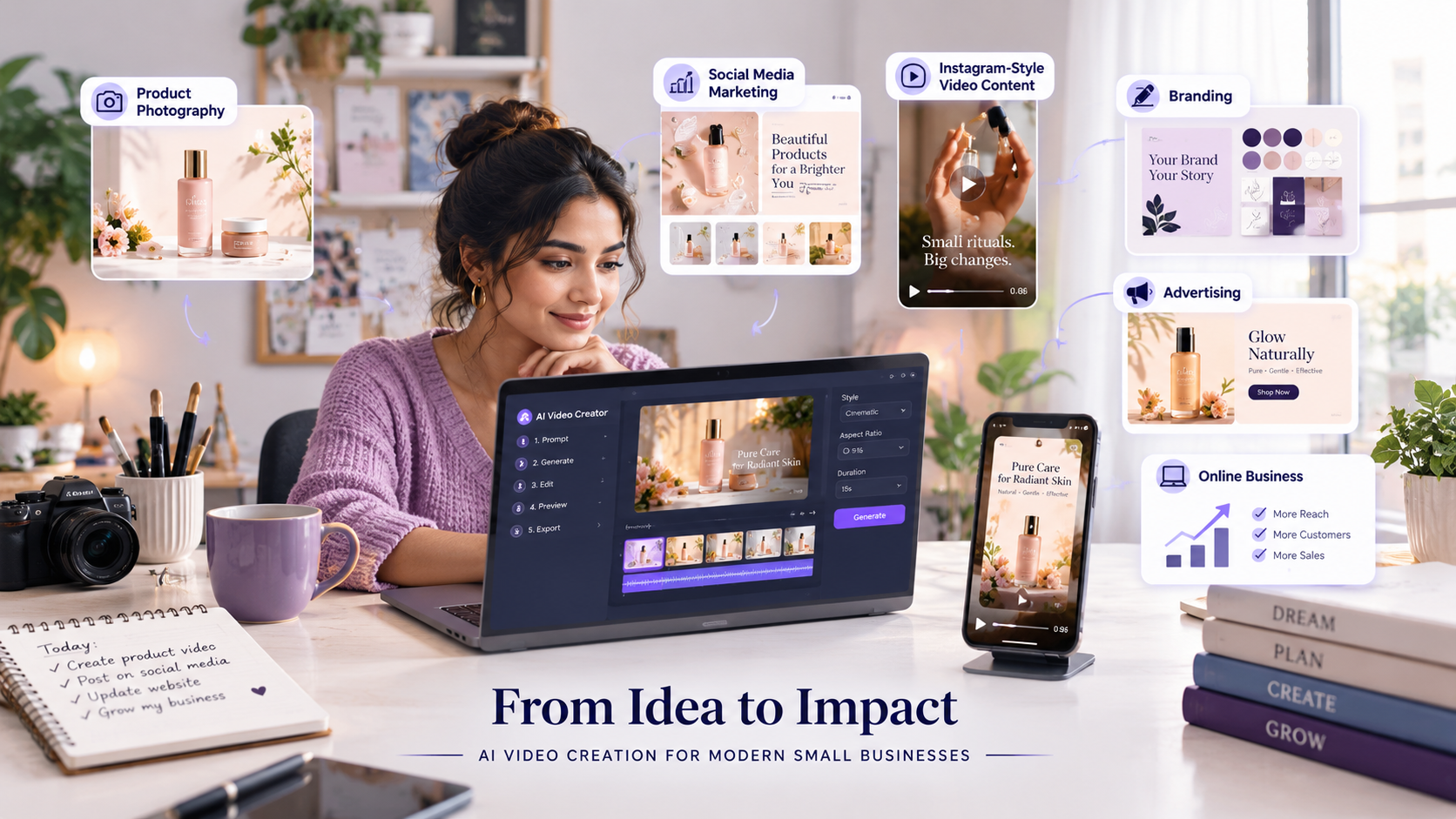
Flow AI can be useful for people who do not have traditional filmmaking experience. Different types of creators can use it for different purposes.
Content Creators and YouTubers
Content creators can use Flow AI to generate B-roll, opening sequences, concept visuals, and short storytelling clips. It can help add visual variety without requiring a full production setup.
Small Business Owners
Small businesses can create product videos, promotional clips, and social media content. This can be useful when a business does not have access to professional filming equipment or a video production team…AI Tools for Small Business Owners in 2026
Social Media Creators
Instagram, YouTube Shorts, and other short-form platforms rely heavily on visual content. Creators can experiment with AI-generated scenes and turn static ideas into short video clips.
Designers
Designers can use AI-generated images and video to explore visual concepts. This can help during the early stages of branding, advertising, and creative projects.
Freelancers
Freelancers can explore AI video creation as an additional service. For example, they could create promotional clips, social media videos, or visual concepts for clients.
Digital Marketers
Digital marketers can use AI-generated video to test different creative ideas. Multiple concepts can be developed before investing in a larger video production project.The common thread: Flow AI removes the cost and logistics barrier that used to make video the hardest content format to produce.
Things to Know Before You Start
Flow AI is powerful, but it has real limitations worth knowing upfront:
- Clip length. Individual clips are typically up to 8–10 seconds, though you can chain multiple clips together in Scenebuilder to build a longer production.
- Credit costs add up. Higher-quality and longer generations consume more credits, so heavy users will want a Pro or Ultra plan.
- Learning curve on prompting. Getting consistently good results takes practice — expect some trial and error early on.
- Watermarking. All outputs generated in Flow using Veo and Imagen include invisible SynthID watermarks, which is worth knowing if you’re using clips commercially.
- Platform access. Flow’s full feature set — including Scenebuilder and 4K export — is available on the web platform at flow.google.com; a mobile app exists in beta with more limited features.
Frequently Asked Questions
Is Flow AI free to use?
There’s a free tier with limited daily credits and partial feature access, but full video generation, higher resolution, and larger credit pools require a paid Google AI plan.
Do I need filmmaking experience to use Flow AI?
No. Beginners can start with short scenes and simple prompts before moving on to more complex filmmaking workflows.
Can I use my own images in Flow AI?
Yes — you can upload your own images to use as starting frames or as “ingredients” for consistent characters and objects across clips.
How long can a Flow AI video be?
Individual generated clips are short (around 8–10 seconds), but you can combine many clips in Scenebuilder to build a longer final video.
Can I use Flow AI videos for YouTube or commercial projects?
Yes, AI-generated video can be used as part of a YouTube production workflow, subject to the applicable tool terms and YouTube’s policies — worth reviewing before monetizing AI-generated content.
Final Thoughts
Flow AI represents a real shift in how video gets made: instead of a camera and a crew, the starting point is now a well-written prompt. For beginners, that’s an enormous opportunity — content creators, small business owners, freelancers, and marketers who never had video production budgets can now produce genuinely polished clips directly from a browser.
The learning curve is mostly about prompting — describing scenes clearly, using reference images for consistency, and combining short clips into a full sequence with Scenebuilder. Start with text-to-video on the free tier, get comfortable with how Flow interprets your prompts, then move into image-to-video and Ingredients to Video once you’re ready for more consistency and control.