
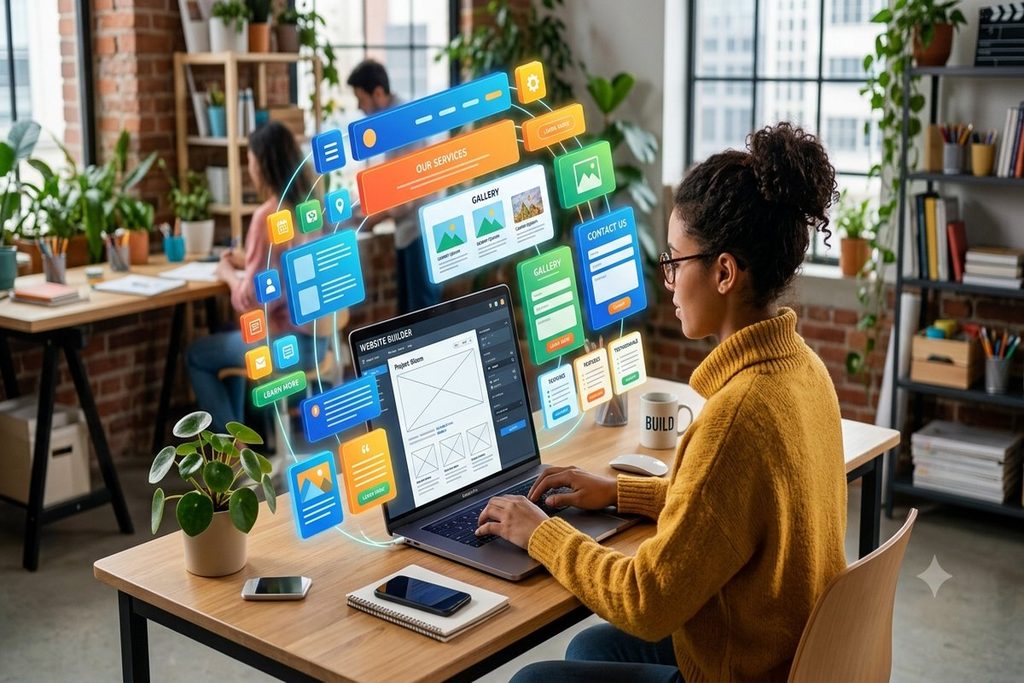
Not long ago, “building a website” meant hiring a developer, learning HTML and CSS, or spending weekends wrestling with a clunky template. That’s no longer true. Between mature drag-and-drop builders and a new generation of AI tools that can turn a short prompt into a working homepage, 2026 might be the easiest year yet to get a professional-looking site online — no code required.
This guide walks through your options, a simple step-by-step process, and the mistakes worth avoiding.
Why No-Code Makes Sense in 2026
A few things have converged to make no-code the default path for most new websites:
- AI has moved from “filling a template” to genuine design assistance. Tools can now generate layouts, write starter copy, and suggest structure based on a description of your business — not just swap placeholder text into a fixed template.
- The builders themselves have matured. Platforms like Webflow and Framer now offer near-agency-level design flexibility without touching a line of code, while WordPress page builders such as Elementor have added their own AI assistants for building and editing pages using plain-language instructions.
- Ownership and flexibility have improved. You’re no longer forced to choose between “easy but locked-in” and “flexible but technical.” There’s a real middle ground now.
That said, “no-code” doesn’t mean “no decisions.” The tools are easier, but choosing the right one for your goals still matters.
The Three Main Paths to a No-Code Website
1. AI Prompt-to-Website Builders
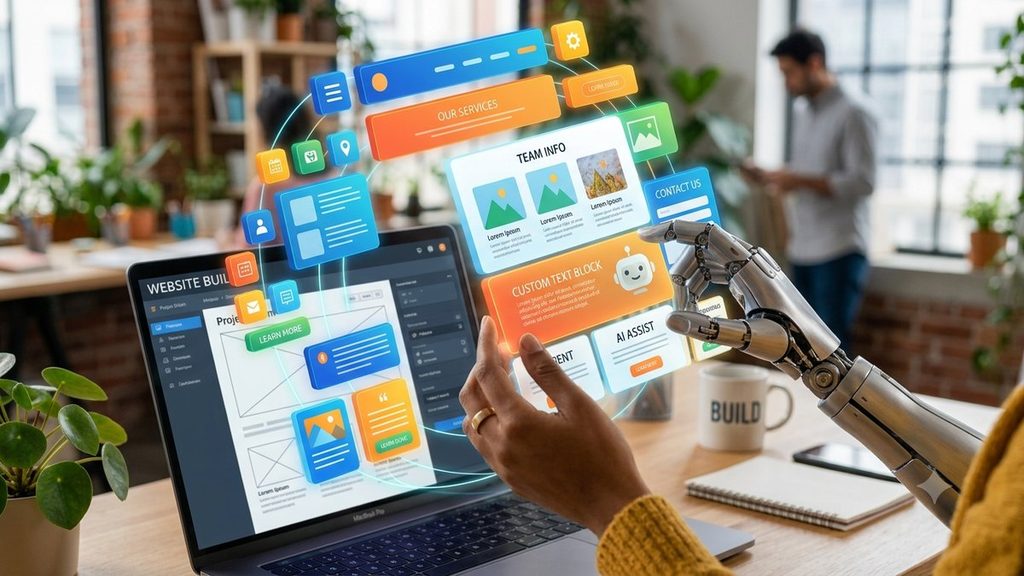
You describe your business — what it does, who it’s for, the vibe you want — and the tool generates a starting site: layout, sections, sample copy, sometimes even images. You then edit it visually.
- Best for: getting something live fast, or starting from a real draft instead of a blank page.
- Trade-off: the first draft is a starting point, not a finished product. Sites can also feel a little generic until you put real time into customizing them, and most don’t let you export the underlying code — you’re building inside their ecosystem.
- Examples of this category: Wix’s AI-guided setup, Hostinger’s AI website builder, and other prompt-based tools that generate a multi-page draft from a short description.
2. Classic Drag-and-Drop Builders
The established, all-in-one approach: pick a template, then use a visual editor to move sections, swap images, and edit text. Hosting, domain, and basic security are usually bundled in.
- Best for: small businesses, portfolios, and online stores that want a polished result without managing separate hosting or plugins.
- Trade-off: you’re renting, not owning — most of these platforms lock your site to their system, and monthly costs continue for as long as the site is live.
- Examples of this category: Squarespace (strong for portfolios and stores, especially photography-led brands), Webflow and Framer (more design control, aimed at people who want an agency-quality look), and Shopify if selling products is the main goal.
3. WordPress + a Visual Page Builder
This is a slightly different model: WordPress is free, open-source software that runs a large share of the web, and a visual builder like Elementor sits on top of it so you design by dragging elements, not writing code.
- Best for: anyone who wants long-term flexibility — the ability to add new functionality later, switch hosts without losing your site, or hand the project to a designer down the line — while still building visually today.
- Trade-off: slightly more setup up front (you’re choosing hosting and a theme separately, rather than everything being bundled), and there are more decisions to make.
- Worth knowing: page builders in this space now include their own AI assistants that can build or adjust sections from a plain-language instruction, so the “type what you want” convenience of AI builders is available here too, without giving up ownership of the site.
There’s no universally “best” option — it depends on how much control you want versus how fast you want to move.
Step-by-Step: Building Your Website
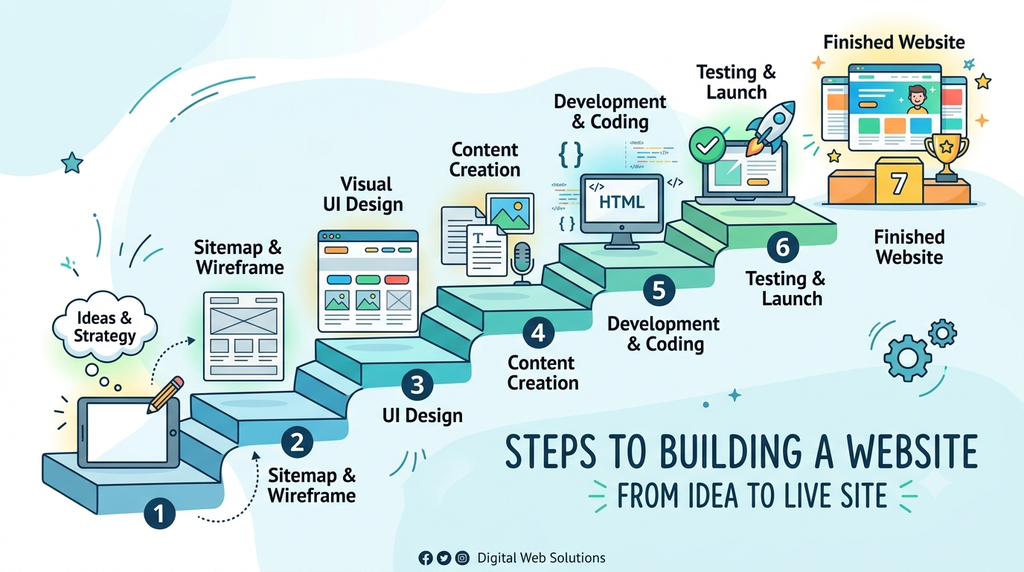
- Get clear on the goal before opening any tool. A portfolio, a lead-generation site for a service business, and an online store need different structures. Write down the 3–5 pages you actually need (most small sites need far fewer pages than people assume).
- Choose your platform based on that goal, using the three categories above as a starting filter.
- Register a domain name. Keep it short, easy to say out loud, and as close to your business or personal name as possible.
- Start from a template or an AI-generated draft rather than a blank canvas — it’s much faster to edit something than to create it from nothing.
- Build your core pages first, in this order: Home, About, Services/Products, Contact. Everything else (blog, FAQ, testimonials) can come after the essentials are live.
- Handle basic SEO as you go, not after: a clear page title, a short meta description, and one focused keyword per page (e.g., “wedding photographer in Pune”) go a long way.
- Test before you publish — check the site on a phone screen specifically, since most visitors will arrive on mobile, and click every link and form.
- Launch, then keep iterating. A no-code site is easy to update, so treat the first version as a living draft rather than a final product.
Matching the Builder to the Site
| If you’re building a… | Lean toward |
| Personal portfolio or one-page site | A simple drag-and-drop builder or AI prompt builder |
| Small business or service site you’ll grow over time | WordPress + a page builder |
| Online store | Shopify, or a builder with strong built-in e-commerce |
| Design-forward brand or agency site | Webflow or Framer |
| Something you need live today, refine later | An AI prompt-to-website tool |
Common No-Code Mistakes to Avoid
- Using too many fonts and colors just because the builder makes it easy — pick 2 fonts and 2–3 brand colors, and stick to them everywhere.
- Skipping mobile checks. A layout that looks great on a laptop can break completely on a phone.
- Publishing with placeholder text left in. It happens more often than you’d think — always do a final read-through.
- Ignoring page speed. Large, uncompressed images are the most common cause of a slow no-code site.
- Treating the AI-generated draft as finished. Generic sections and stock-sounding copy are the easiest way for a visitor to tell a site was auto-generated and never revisited.
When It’s Worth Bringing in a Professional
No-code tools genuinely close the gap between “no website” and “a live website” — but there’s still a difference between a functional site and one that looks and feels distinctly yours. If you get stuck on the parts that are more about design judgment than the tool itself — a layout that doesn’t feel cohesive, branding that doesn’t quite land, copy that reads generic — that’s usually less a coding problem and more a design one. At that point, a short session with a designer to fix the visual foundations can go a lot further than another hour of trial and error inside the builder.
Final Thoughts
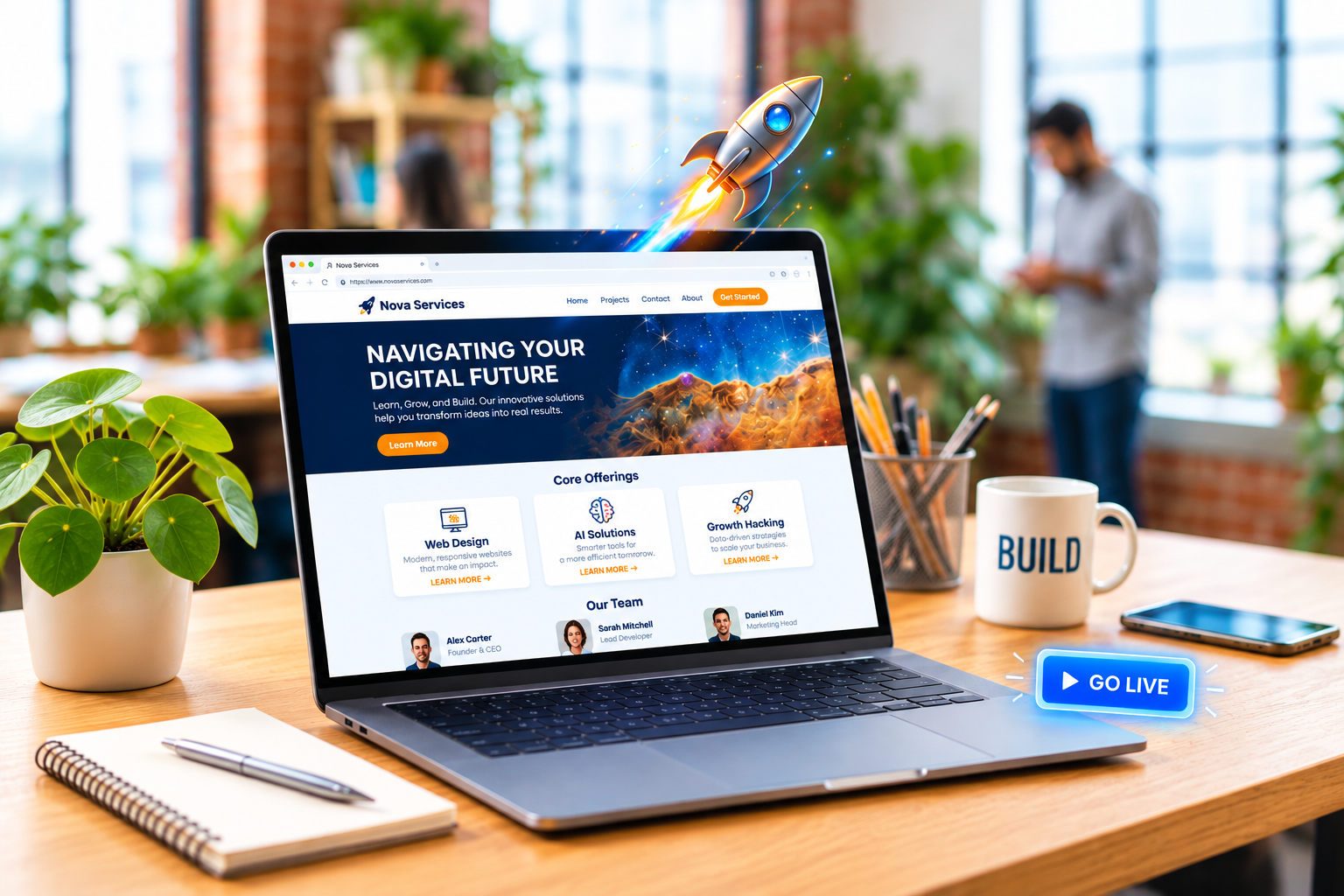
The barrier to launching a website has genuinely dropped in 2026 — but a website that actually works for your business is still about clear goals, a simple structure, and a design that feels intentional rather than default. Pick the tool that matches how much control you want, follow the steps above in order, and resist the urge to launch before your core pages are solid. Everything else can be improved after you’re live.